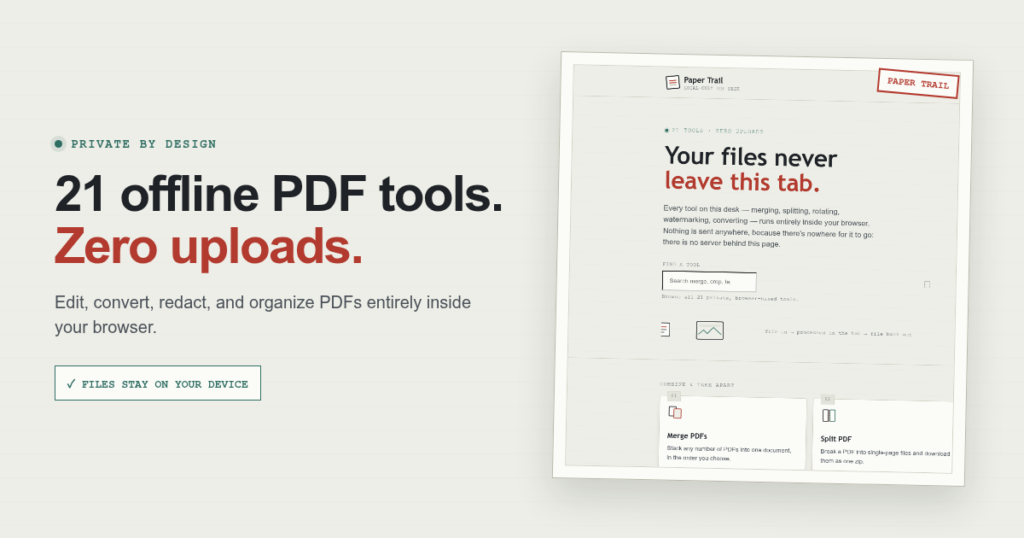
Offline PDF tools can solve a frustrating privacy problem: how do you edit a document without first sending it to somebody else’s server? Paper Trail answers that question with 21 practical utilities that run entirely inside your browser.
From merging contracts and extracting pages to flattening forms and permanently redacting sensitive details, Paper Trail handles everyday PDF work without accounts, analytics, upload queues, or a backend. The enhanced edition also bundles its open-source browser libraries locally, so the toolkit remains useful even when an internet connection is unavailable.
Why browser-based, offline PDF tools matter
Many web-based PDF services follow a cloud workflow: select a file, upload it, wait for remote processing, and download the result. That can be convenient, but it also creates questions about document retention, access controls, network reliability, and whether confidential material should leave the device at all.
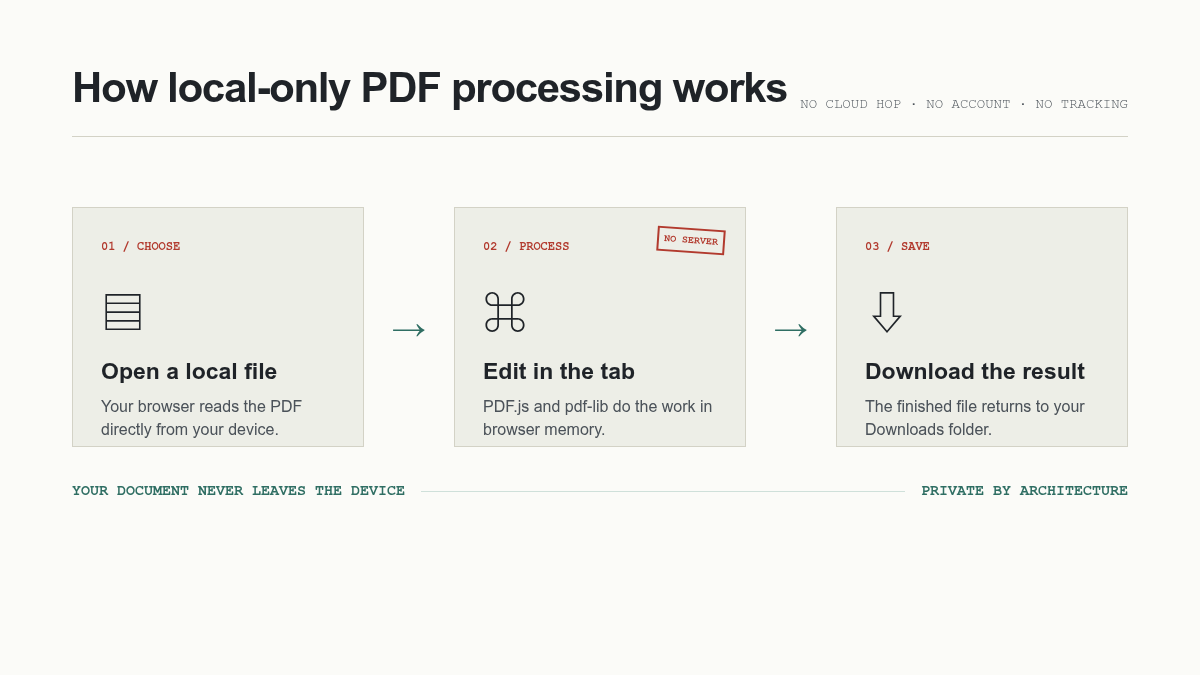
Paper Trail takes a different approach. Its HTML, CSS, JavaScript, PDF.js, pdf-lib, and JSZip files are delivered as a static application. Once the page is open, the browser reads the selected document into local memory, performs the requested operation, and creates a new file for download. There is no application server waiting to receive the PDF.
What can you do with Paper Trail?
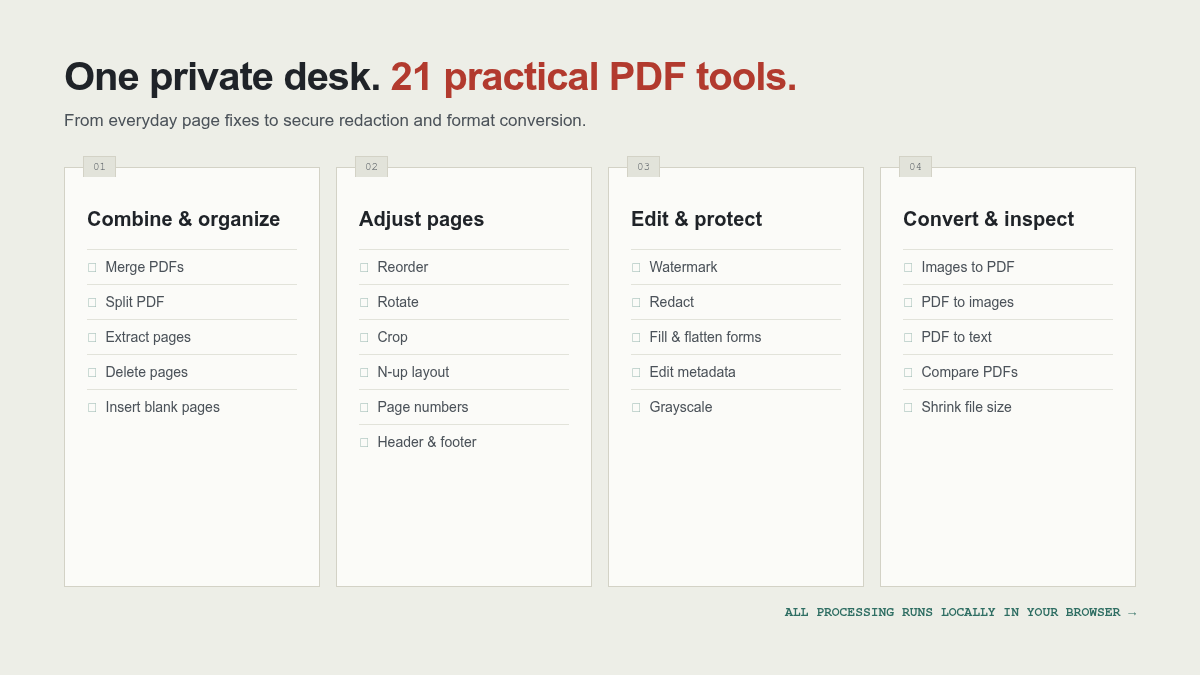
The toolkit groups 21 PDF utilities into four clear workflows. That makes it quick to find the right action without navigating a complicated editor or creating an account.
1. Combine and organize documents
- Merge PDFs: combine multiple files in a chosen order.
- Split PDF: create a ZIP containing one PDF per page.
- Extract pages: build a new PDF from selected pages or ranges.
- Delete pages: remove unwanted pages while preserving the rest.
- Insert blank pages: add separators at the beginning, end, or a selected position.
2. Rearrange and adjust pages
- Reorder and rotate: use visual thumbnails to fix page order and orientation.
- Crop: trim margins from all pages or only selected ones.
- Multiple pages per sheet: create two-up or four-up layouts for printing.
- Page numbers: add running numbers with flexible placement.
- Headers and footers: repeat custom text across the document.
- Grayscale: rasterize pages in black and white for consistent printing.
3. Edit, label, and protect PDFs
- Watermark: stamp customizable text with angle, size, color, and opacity controls.
- Redact: draw black boxes over sensitive areas and optionally flatten every page to an image.
- Fill and flatten forms: complete supported interactive fields and lock the values into the PDF.
- Edit metadata: change the title, author, subject, keywords, and creator fields.
4. Convert and inspect files
- Images to PDF: turn JPG and PNG images into a paginated document.
- PDF to images: render every page as a PNG and package the results in a ZIP.
- PDF to text: extract selectable text for copying or downloading.
- Compare PDFs: render two versions side by side and flag changed pages.
- Shrink file size: rewrite the internal PDF structure with object streams when possible.
Privacy protections in the enhanced edition
“Runs in your browser” is most meaningful when the implementation supports the claim. The enhanced Paper Trail package includes several protections designed to keep the workflow local:
- Vendored dependencies: PDF.js, pdf-lib, and JSZip ship inside the download instead of loading from public CDNs.
- No remote fonts or trackers: the interface uses local system fonts and contains no analytics code.
- Restrictive Content Security Policy: the pages block outgoing network connections and third-party resources.
- Safer text rendering: filenames and PDF form-field names are inserted as text rather than executable HTML.
- Secure redaction option: flattening converts completed pages to images, removing the covered text and objects from the resulting PDF.
How offline PDF tools compare with cloud and desktop apps
| Approach | Best for | Main trade-off |
|---|---|---|
| Local browser tools | Fast, focused edits without uploading files | Performance depends on browser memory and device power |
| Cloud PDF services | Convenient access from almost any device | Documents must be transferred to a third-party system |
| Installed desktop editors | Advanced authoring, OCR, signatures, and complex production work | Often requires installation, licensing, and more system resources |
Paper Trail is not trying to replace a full document-authoring suite. Its strength is speed and focus. If you need to merge a few reports, remove a confidential page, add a watermark, or extract text, opening a single-purpose browser tool is often faster than launching a large desktop application. At the same time, the local architecture avoids the upload step required by most online PDF editors.
A closer look at the technical design
Three mature JavaScript libraries power the toolkit. pdf-lib creates and modifies PDF objects, PDF.js renders pages and extracts text, and JSZip packages multi-file exports. The interface itself is plain HTML, CSS, and JavaScript, so there is no framework build process and no database to configure.
That simple architecture has practical benefits. The folder can be stored on an encrypted drive, copied to an offline workstation, or hosted on an internal static server. Because the enhanced package includes the exact library versions it needs, a public CDN outage cannot break the editor. A restrictive browser policy also prevents the application pages from opening external network connections while a document is being processed.
Know the limits before you begin
Privacy-first software still needs realistic expectations. Paper Trail does not decrypt password-protected PDFs, perform optical character recognition on scanned pages, create cryptographic signatures, or reproduce every proprietary form behavior. Text extraction works best when the source PDF already contains a readable text layer. The compare tool identifies visual page differences rather than producing a legal-grade semantic change report.
For redaction, keep the flatten option enabled when content must be unrecoverable, then reopen the exported document and test whether covered text can be selected or searched. For important records, preserve an untouched original and review page count, orientation, image quality, links, and form values before distributing the processed copy.
Local processing reduces exposure, but it does not replace good document handling. Keep an original backup, verify every output, and only work with files you are authorized to modify.
How to run Paper Trail offline
- Download and extract paper-trail-pdf-tools-enhanced.zip.
- Open a terminal in the extracted
pdftoolsdirectory. - Run
python3 -m http.server 8000. - Visit
http://localhost:8000in a current browser. - Choose a tool, select a PDF, configure the options, and download the result.
A small local server is recommended because browsers often restrict web workers on file:// pages. The server only delivers files to your own browser on your own machine; it does not upload documents to the internet.
Who is Paper Trail for?
Paper Trail is a good fit for freelancers, educators, legal and administrative teams, students, small businesses, and privacy-conscious home users who need focused PDF tools without a subscription. It is especially useful on unreliable connections, on managed networks where cloud upload sites are blocked, or whenever a document should stay under the user’s direct control.
Because the work happens locally, performance depends on the device and browser. Very large, scanned, or image-heavy PDFs can consume significant memory. The shrink tool also optimizes PDF structure rather than applying aggressive image compression, so savings vary by file.
Frequently asked questions
Are offline PDF tools safer than cloud PDF editors?
They can reduce privacy exposure because the document does not need to be transferred to a third-party processing server. Users should still keep software updated, protect their device, and verify sensitive outputs before sharing them.
Does Paper Trail upload my PDF?
No. Paper Trail has no upload endpoint or backend. The enhanced edition also blocks network connections through its Content Security Policy and stores its required libraries locally.
Can Paper Trail permanently redact information?
Yes, when the “flatten pages to images” option is enabled. That process renders the completed pages and creates a new PDF from the rendered images, preventing covered text or objects from remaining underneath the black boxes. Always inspect the exported file before distribution.
Does the toolkit work without an internet connection?
Yes. All runtime libraries are included in the enhanced package. After extraction, serve the folder locally and use the toolkit without contacting a CDN or external service.
A private PDF desk you control
Paper Trail keeps PDF work simple: choose a focused tool, process the document locally, and save the result. With 21 utilities, offline dependencies, a clear interface, and no account requirement, it offers a practical alternative to upload-first PDF websites.